 DJI Live Bridge
Go live from your DJI drone to Instagram and TikTok
DJI Live Bridge takes the RTMP stream from DJI Fly on your computer and sends it to several platforms at once — or turns it into a virtual camera for TikTok LIVE Studio, where no stream key is needed.
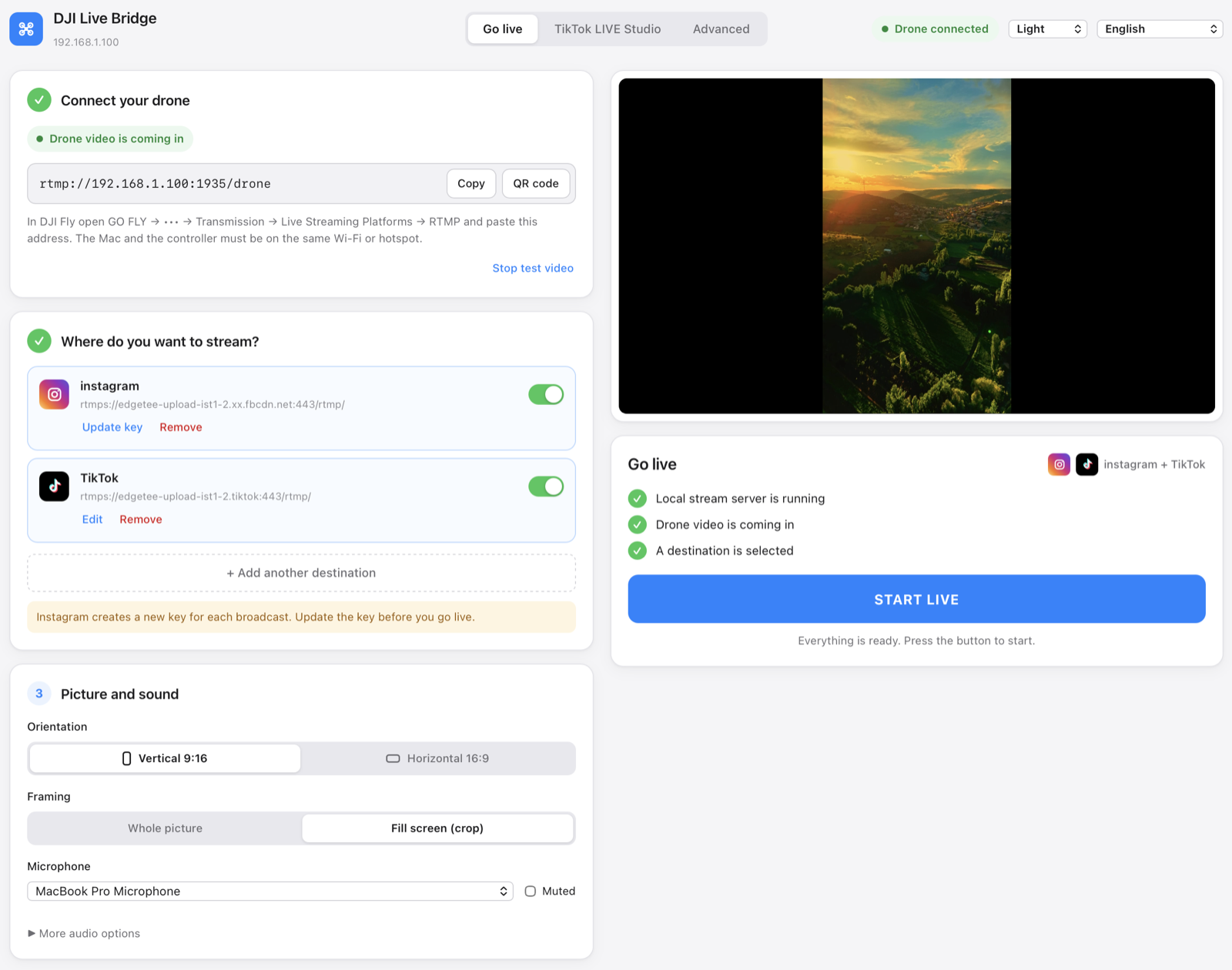
One screen: connect the drone, add destinations, press START LIVE.
What it does
Everything runs on your own computer. The drone feed never goes through anyone else's server.
Several platforms at once
Instagram, TikTok and any custom RTMP destination in the same broadcast. The picture is encoded once and forwarded to each one, so one failing destination does not stop the others.
No stream key for TikTok
The built-in virtual camera appears in TikTok LIVE Studio as “DJI Live Bridge Camera”, so you can go live without RTMP access.
Made for vertical video
1080×1920 at 30 fps, 6 Mbps CBR, H.264 High, 2-second keyframes. Empty space is filled with a blurred copy of the shot instead of black bars.
Nothing else to install
FFmpeg is built into the app — no Homebrew, no Terminal, no separate download. The macOS bundle is signed and notarized by Apple.
Keys stay in the system vault
Every stream key lives in its own Keychain entry, never in a config file, in process arguments or in logs.
Live preview and diagnostics
A low-latency local preview, real stream metrics from the media server, recording, and system checks that never fake a passing result.
15 languages, 5 themes
The interface follows your system language, and Arabic switches the whole layout to right-to-left.
How it works
DJI Fly sends RTMP to your computer; the computer does the rest.
- Connect your droneIn DJI Fly: GO FLY → Transmission → Live Streaming Platforms → RTMP, and paste the address the app shows. The computer and the controller share the same Wi-Fi or phone hotspot.
- Choose where to streamAdd Instagram, TikTok or any RTMP server with the server URL and stream key from that platform. Keys are stored in the system vault.
- Press START LIVEThe button unlocks when the local server is running, drone video is arriving and a destination is selected. You then see the elapsed time, each destination's state and the data sent.
TikTok without a stream key
TikTok only hands out RTMP keys to some accounts. TikTok LIVE Studio has no such limit, because you log in with your account — it just needs a camera. DJI Live Bridge provides that camera.
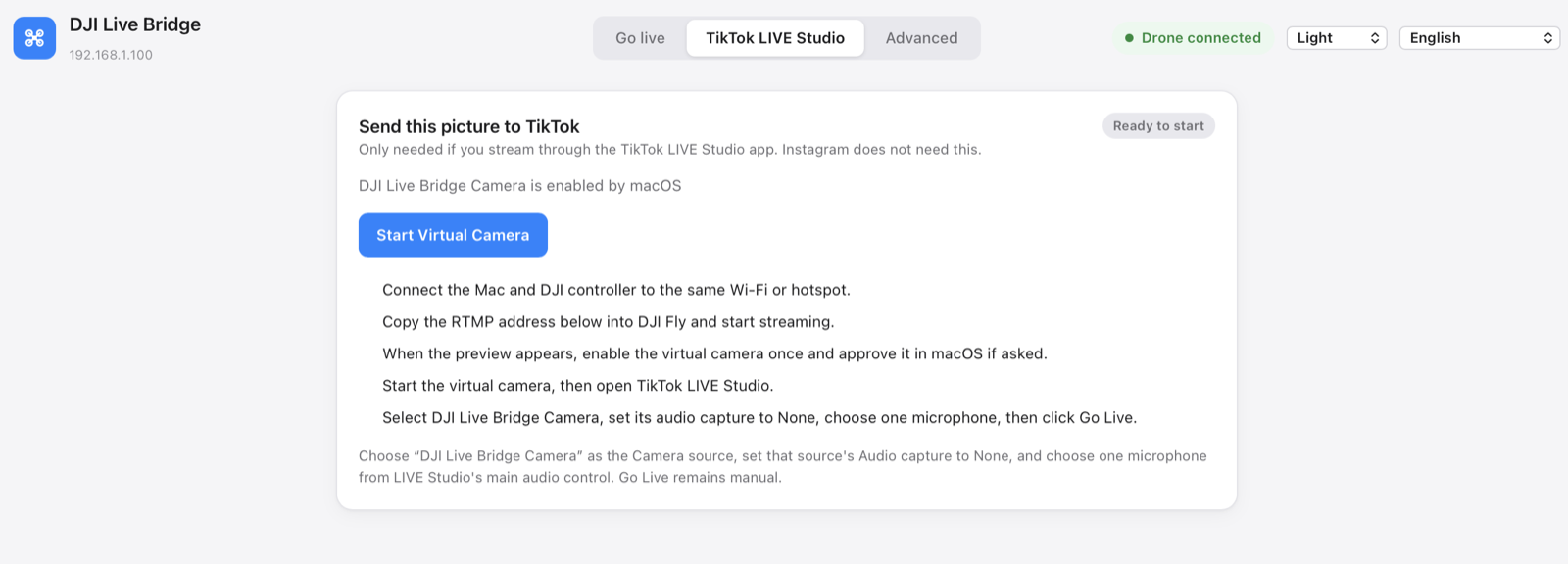
- Enable the virtual camera once; your system asks for approval the first time.
- In TikTok LIVE Studio add a Camera source and pick DJI Live Bridge Camera.
- Set that source's audio capture to None and choose one microphone in LIVE Studio.
- Press Go Live in TikTok LIVE Studio.
The camera carries video only, on purpose: it keeps TikTok's own audio handling in charge and avoids double audio.
For the details
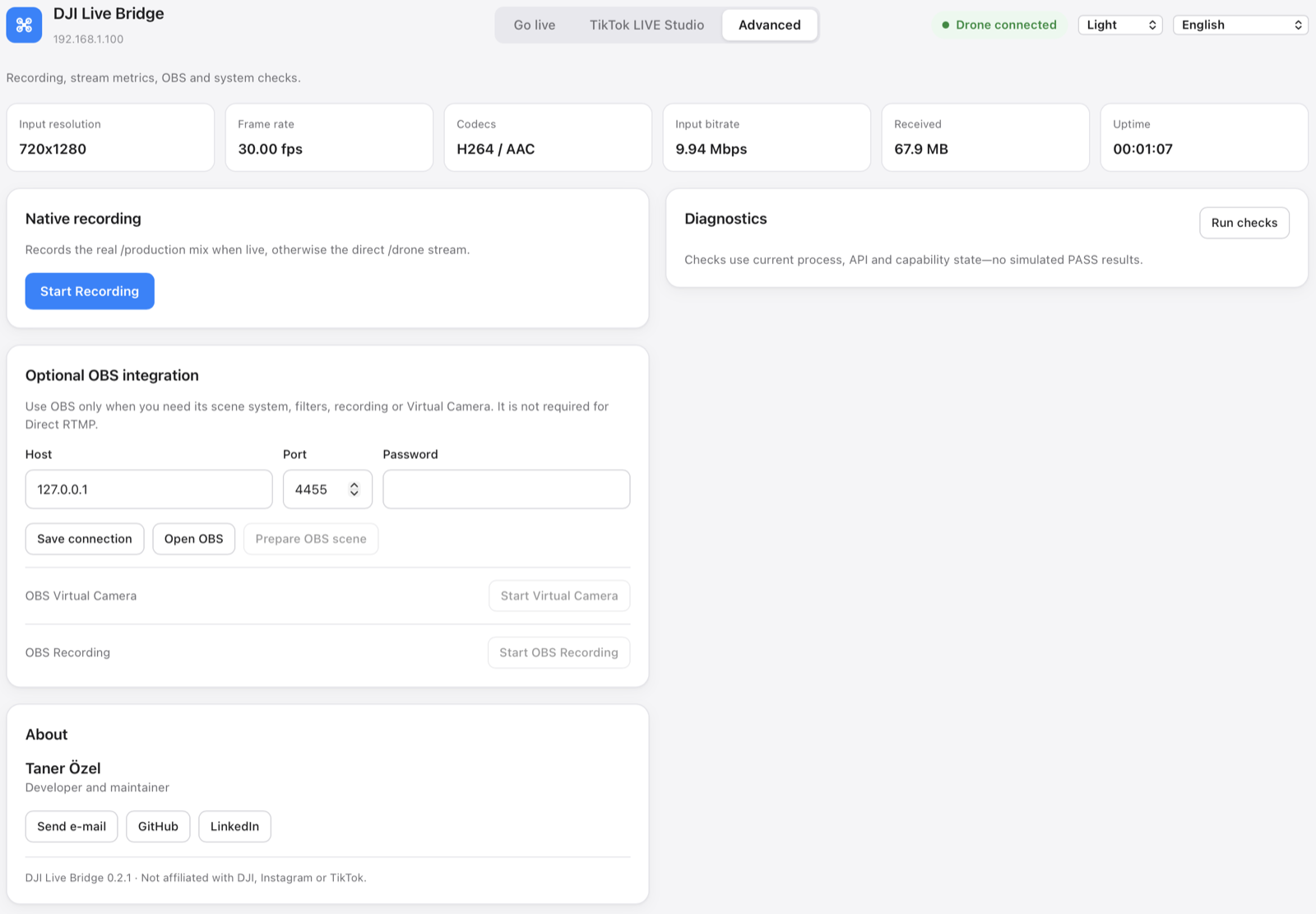
Recording, live stream metrics, optional OBS integration and system checks sit in the Advanced tab, out of the way of the main flow.
Install
- Download the DMGTake the
aarch64file for an Apple Silicon Mac (M1 and newer) or thex86_64file for an Intel Mac, then drag DJI Live Bridge into your Applications folder — the virtual camera only works from there. On Windows, run the-setup.exeinstaller. - Open itThat is the whole setup. FFmpeg ships inside the app, so there is no Homebrew, no Terminal and no second download.
- Go liveThe macOS app is signed and notarized by Apple, so it opens without warnings.
The app speaks 15 languages
Questions
Which drones work?
Any drone whose DJI Fly version offers RTMP under Live Streaming Platforms. The app receives a normal RTMP stream, so it does not talk to the drone itself. On the RC 2, DJI Fly may refuse to start streaming unless a microphone is connected to the controller.
Do I need to install FFmpeg?
No. The app carries its own FFmpeg, built from source without any GPL component (LGPL, Apple VideoToolbox for H.264), so there is nothing to install and nothing to keep up to date. The licence texts and the exact build flags are inside the app under Contents/Resources/licenses.
Do I need OBS?
No. OBS is optional and only useful if you want its scenes, filters or recording. Direct RTMP and the virtual camera work without it.
Does it work on an Intel Mac?
Yes. Every release ships two downloads: one for Apple Silicon and one for Intel, both signed and notarized, each with its own bundled FFmpeg. Pick the file that matches your Mac.
Does it work on Windows?
There is a Windows build in beta. Streaming to Instagram, TikTok and any RTMP destination works, as do the preview, recording and diagnostics. The built-in virtual camera is included too: the installer registers a “DJI Live Bridge Camera” device for TikTok LIVE Studio, OBS or Zoom. It is newer than the macOS one, so if it does not appear, OBS Virtual Camera through the optional OBS integration still works. One more caveat: the installer is not code-signed yet, so Windows SmartScreen will warn you.
Where do my stream keys go?
Into the system vault, one entry per destination. They are handed to the local media server over the loopback interface when you go live and removed when you stop. They never appear in the config file, in process arguments or in logs.
Why does Instagram ask for a new key every time?
That is Instagram's own behaviour: it issues a fresh stream key for every broadcast. Use “Update key” on the destination card before you go live, and remember to press “Go live” on Instagram's side to make the broadcast public.
Why is my picture 720p?
The DJI controller often sends 720p over RTMP. The app shows the real input resolution and does not pretend the upscaled output is native 1080p.